FAQs

Can Tekscan sensors be cut or trimmed?

Question: Can Tekscan sensors be cut or trimmed?

Answer: Yes, some of our sensors can be cut or trimmed to smaller sizes or shapes, or even punctured for secure placement. The model 4205 (pictured), model 7800 pressure sensor and T800 temperature sensor are designed to be sized for custom embedding in battery placements or other tight spots.
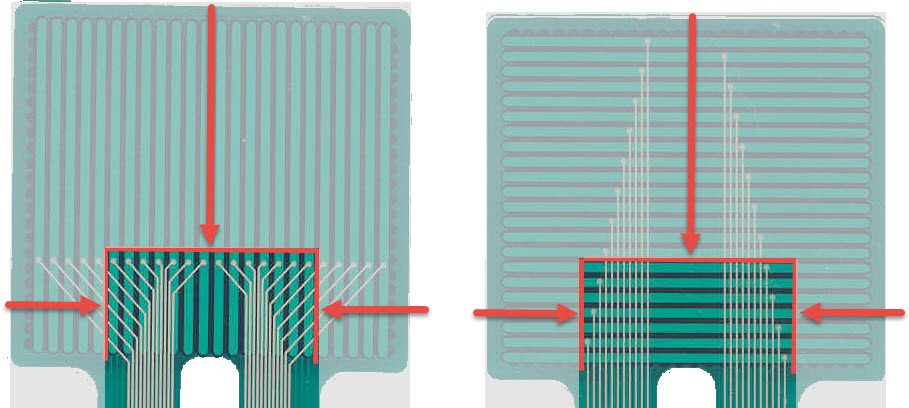
image-20240820133832-1Tips for trimming:

The rows and columns are connected through silver dots and traces on the surface of the sensor. If you trim the sensor, a row or column will remain active so long as the silver dot and silver connecting trace remain intact and connected to the handle.

Based on this photo, you can trim up to 15 rows from the distal end of the sensor before you reach the column trace connections. And you can trim up to 5 columns from either side before you reach the silver connections to the rows.

Consult with a Tekscan engineer if you aren't sure if your sensor is trimmable or how to do it. Cutting through the sensing element will short the sensor! 


---
The ability to trim for shoe size is one of the most important advantages of our in-shoe F-Scan™GO sensor, which can be trimmed to fit any shoe size up to a men’s size 14.

Tips for trimming the F-Scan GO sensor can be found in the manual, or HERE

Link to this FAQ

What sizes are sensors available in?

Question: What sizes are sensors available in?

Answer: We have sensors in many shapes and sizes. Please refer to one of our sensor catalogs to see diagrams of our standard sensors. Contact Tekscan for the sensor that would best fit your application. Custom sensors are also available.

Link to this FAQ

What are Tekscan's Computer Requirements?

For your Tekscan system to function properly, your computer must meet or exceed the following.

(Note: Dental system requirements can be found on the What are the dental T-Scan™ computer requirements? page)

Suggested Minimum Computer Requirements (desktop, laptop, or tablet) for all Tekscan Systems:

  • Windows® 11 or Windows® 10 Home or Pro Version (64-bit version only. ARM / Snapdragon not supported. How to check if my OS is 64bit.)
  • Memory: 8 GB RAM minimum, recommended 16 GB
  • 1 available USB A 2.0 or higher port. An adaptor for a USB-C port will work.
  • Internal or external Wi-Fi (802.11 b/g/n) adapter (for Wireless systems only)

Are Tekscan systems compatible with tablet computers?

  • Yes, if they meet the requirements above for 64 bit Windows computers.

Link to this FAQ

Is Tekscan software Windows 11 compatible?

Yes, all Tekscan software including T-Scan Dental has been tested and is fully compatible with Windows 11. 

Here are the full system requirements.


Link to this FAQ

What maintenance do I need to perform on the F-Scan64?

Sensors should always be disinfected with a 70% Isopropyl Alcohol solution after each use. To do this, slightly dampen a cloth with the alcohol solution, careful not to soak or saturate the cloth. Then wipe the sensor. 

Sensors should always be stored flat in either the system box or some other protective cover. Improper storage can adversely affect sensor life. 

Sensor Replacement/Disposal: Always dispose of sensors in accordance with Regional guidelines pertaining to medical biohazardous waste. 

A sensor can be reused either with different subjects after cleaning (requiring the same size sensor) or during a series of tests with the same subject. Sensor life is reduced if the sensor gets wrinkled or folded during use. 

Link to this FAQ

What happens if I go out of Bluetooth range during data collection?

The Bluetooth™ data transfer has a range of 10 m (30 ft.). If the F-Scan64 subject goes beyond the 10m Bluetooth range, there is a buffer of 16,000 frames (for example: @50Hz, recording buffer up to 5 minutes and 20 seconds) that will be stored on the cuffs. Once the subject is back in range, the user can select the “Transfer Recordings” button to re-connect the devices and transfer the collected recording to the PC.   

Link to this FAQ

How long will F-Scan64 sensors last?

Sensor usage is dependent upon application. Typically, you can expect up to up 20 uses, assuming 20-30 steps per trial in-shoe without orthotics. 


Link to this FAQ

Error: Handle Driver is Not Loading - Error Code 52

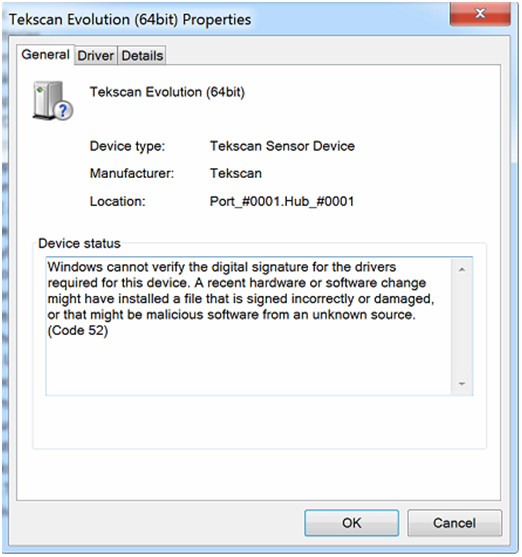
Issue: T-Scan or I-Scan doesn't see the Evolution handle. The Device Manager shows Code 52 error.

T-Scan 9.1 Handle Driver Error

Solution:

First enable Windows Updates on your system. Install all the critical updates and see if this fixes the Code 52 error.

If not, this could be caused by a required security patch from Microsoft (that is missing). Info on the update needed:

https://support.microsoft.com/en-us/kb/3033929

Download of the update:

https://technet.microsoft.com/en-us/library/security/3033929

"SHA-2 certificates require KB3033929 on Windows 7

If your certificate uses SHA-2 or has SHA-2 certificates in its chain of trust and you are using it to sign kernel modules, then you should be aware of KB3033929, an update for Windows 7 distributed through Windows Update. On versions of Windows 7 without this update, the kernel will reject signatures made with certificates that use SHA-2, so they cannot be used to get a kernel module to load."

Select your Windows OS, download, install and re-boot the computer.

Link to this FAQ

Error: No More Available Handles

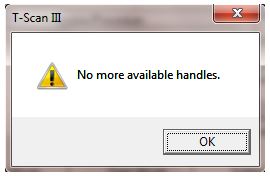
Issue: When trying to open a new Real-Time Window, you receive the error message: "No more available handles" (shown below).

No more available handles.No more available handles.

Solution: Close the software. Plug in the Evolution™ Handle (or VersaTek™ Hub and Cuffs). Then open the software.

If you are creating a new recording, the Evolution Handle (or VersaTek Hub and Cuffs) must be plugged in before starting the software. If you plug in the Hardware after the Tekscan software is running, you will see this error message when attempting to open a new Real-Time Window.

Note: In rare cases, a system reboot may be required.

Link to this FAQ

Does Tekscan software support local languages?

Question: Does Tekscan software support local languages?

Answer: Tekscan systems support a multitude of languages, including English, Chinese, French, German, Italian, Japanese, Korean, Russian and Spanish. Please refer to the table below to see full language availability.

Product Chinese Traditional Chinese Dutch English French German Greek Italian Japanese Korean Polish Russian Spanish
API1 (n/a)                          
API2 (n/a)                          
BPMS™ X   X X X X X X X X X X X
CoM'Nalysis™       X                  
CONFORMat™ X   X X X X X X X X X X X
ELF™       X                  
FastScan           X              
FastScan Mobile           X              
F-Scan™ X X X X X X X X X X X X X
F-Scan™ Mobile X   X X X   X X X X   X X
Grip™ X X X X X X X X X X X X X
Handheld       X                  
Hoof™ X X X X X X X X X X X X X
HR Mat™ X X X X X X X X X X X X X
I-Scan™ X   X X X X X X X X X X X
MatScan™ X X X X X X X X X X X X X
Presto-Scan™ X   X X X X X X X X X X X
Saddle™ X X X X X X X X X X X X X
TireScan™ X   X X X X X X X X X X X
T-Scan™ X   X X X X X X X X X X X
Walkway™       X   X              
Wiper™ X     X X X   X X X   X X

Note: Additional Software modules like SAM™ (Sway Analysis Module™), STAM™ (Stance Timing Analysis Module™), and TAM™ (Timing Analysis Module™) are supported by the same languages as their parent software.

Link to this FAQ